
Log in to your cloud server with SSH
Aktualisiert 7. November 2026
Your username
You log in with the default user of the image you chose:
| Image | Username |
|---|---|
| Ubuntu | ubuntu |
| Debian | debian |
| Rocky Linux | rocky |
| AlmaLinux | almalinux |
| CentOS Stream | cloud-user |
You don't log in as root. Your user can run any command as root with sudo.
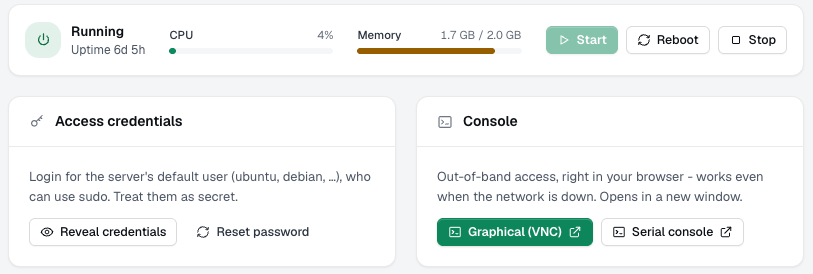
To see your username and password, open your server in the dashboard and click Reveal credentials under Access credentials.
Log in with your SSH key
If you added an SSH key when you ordered (or picked one of your saved keys under Account › SSH keys), it's already on the server:
ssh ubuntu@YOUR_SERVER_IP
Use your own username and IP address.
Add or change an SSH key
- Open your server in the dashboard and find SSH keys on the server page.
- Click Add key (or Change keys), then pick one of your saved keys or paste a public key, one per line.
- Save. The keys are installed on the server's next restart from the dashboard. Tick the option to restart right away, and the key works about a minute later.
Keys that are already on the server stay. A reinstall uses the same keys.
Paste only your public key, the line that starts with ssh-ed25519 or ssh-rsa. If the key is cut off, the login keeps failing.
Add a key from the console
You can also add a key yourself, without a restart:
- Open the Console on your server page and log in with the username and password from Access credentials.
- Add your public key to the user's
~/.ssh/authorized_keys, for example:
mkdir -p ~/.ssh && chmod 700 ~/.ssh
echo "ssh-ed25519 AAAA... you@laptop" >> ~/.ssh/authorized_keys
chmod 600 ~/.ssh/authorized_keys
From then on you can log in with your key.
Forgot the password?
Click Reset password under Access credentials. The server restarts to apply it (about a minute) and gets new SSH host keys, so your SSH client may warn that the host key changed. That's expected after a reset.
Can't connect?
- Check that the server is running: start it with Start on the server page.
- Make sure your firewall allows SSH (port 22). It's open by default.
- Running fail2ban on your server? After a few wrong attempts it blocks your own IP address too. Unblock it from the Console.
- The Console works even when the network doesn't, so you can always look inside.