
← Alle Artikel
Set up email for your domain
Aktualisiert 3. November 2026
1. Add the mail domain
- Log in to the dashboard and open your web hosting.
- Go to Email and click Add mail domain.
- Enter your domain and save.
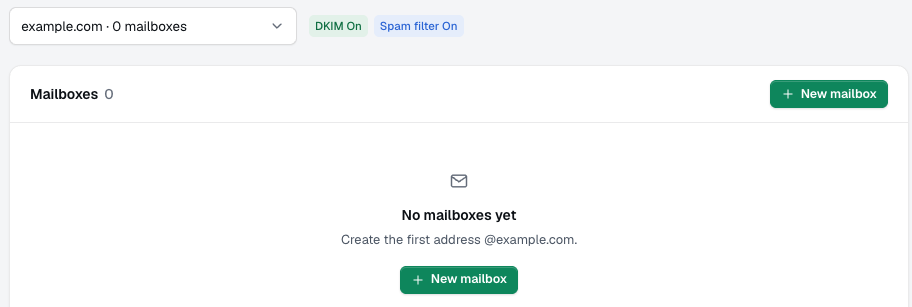
We switch on spam and virus filtering and DKIM signing. If your DNS is with us, we also add the mail records (MX, SPF, DKIM and DMARC) for you. If your DNS is elsewhere, the dashboard shows the records to add there.
2. Create a mailbox
- Open the mail domain and click New mailbox.
- Enter the part before the
@(for exampleinfo) and choose a strong password. - Save.
The number of mailboxes depends on your plan: 5 on Simple, 15 on Advanced and 100 on Pro.
3. Optional settings
Open a mailbox to change its settings:
- Aliases: extra addresses that deliver into the same mailbox, such as
hello@landing ininfo@. - Forward: send incoming mail on to another address, with or without keeping a copy. Some providers may flag forwarded mail as spam.
- Autoreply: an automatic answer, for example while you're on holiday.
4. Connect your devices
Next, add the mailbox to your mail app or use webmail. See Connect your mail app or use webmail.